> For the complete documentation index, see [llms.txt](https://help.fungies.io/llms.txt). Markdown versions of documentation pages are available by appending `.md` to page URLs; this page is available as [Markdown](https://help.fungies.io/workspace-settings/test-mode.md).

# Test Mode

Build and test your store, checkout, API integration and webhooks with test payments, without touching your live store or moving real money.

Every workspace has two separate sets of data: **Live** and **Test**. In Test Mode the Dashboard shows only test data: test products, orders, users, subscriptions, webhooks and API keys. Your live catalog, orders and payouts are never touched.

You don't need a separate testing account anymore: Test Mode lives right inside your workspace on [app.fungies.io](https://app.fungies.io/).

## How to turn on Test Mode

1. Log in to the [Fungies Dashboard](https://app.fungies.io/).
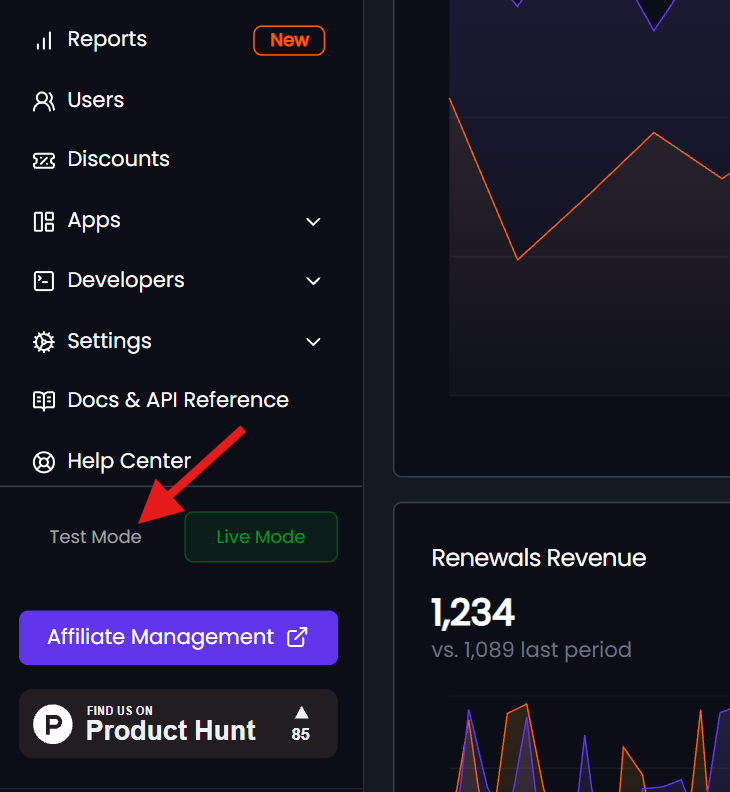
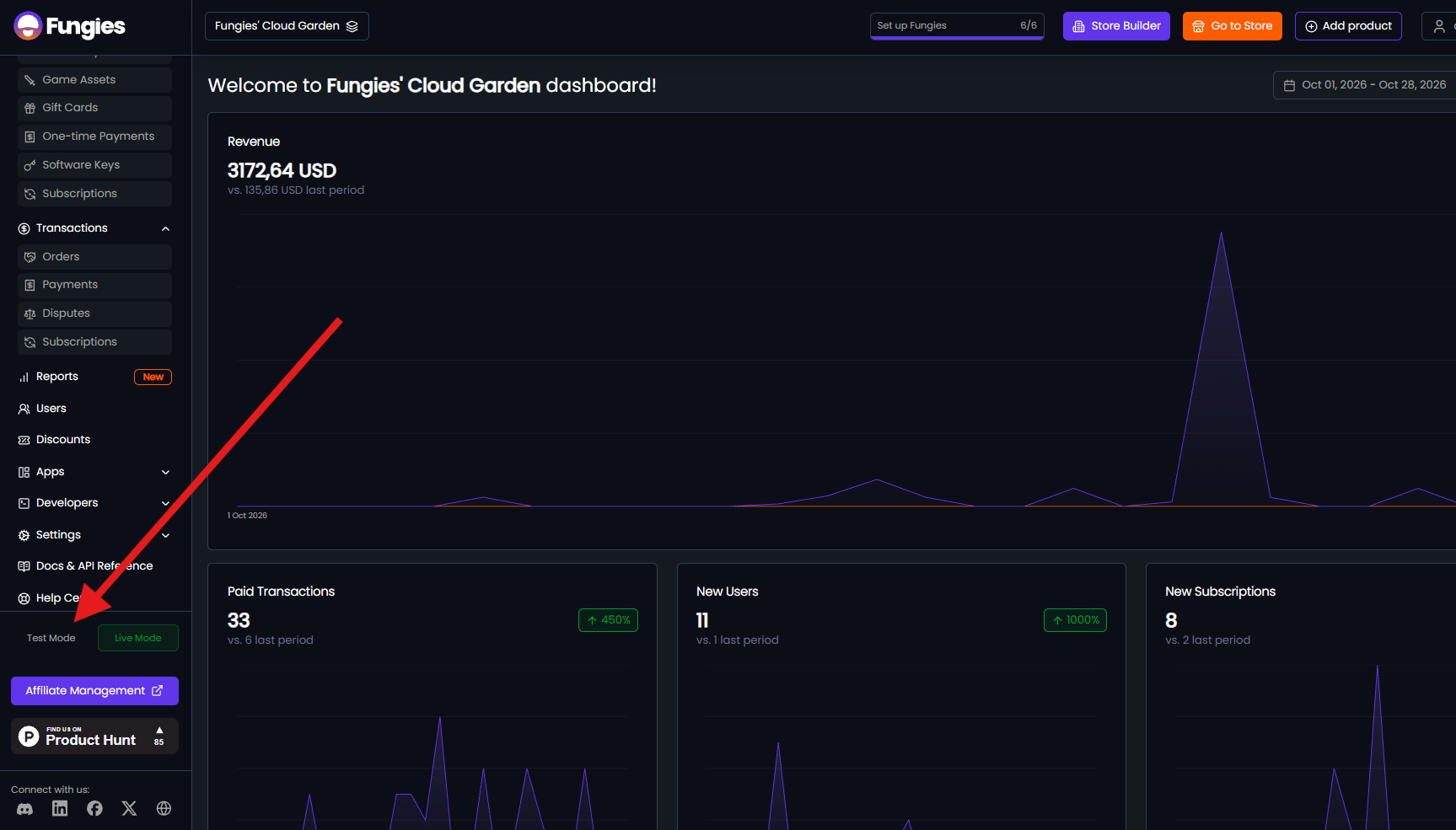
2. At the bottom of the left menu, find the **Test Mode** / **Live Mode** switch (just above **Affiliate Management**).
3. Click **Test Mode**.
4. The first time you switch, Fungies sets up your test environment. You'll see "Setting up your test environment…" under the switch. This can take a few minutes, and your live store keeps working as normal. If it takes longer, click **Retry**.
5. The Dashboard reloads in Test Mode. A purple **TEST MODE** banner at the top of every page reminds you that you are looking at test data only.

<figure><img src="https://yscmdairkpuieitvldci.supabase.co/storage/v1/object/public/media/uploads/239760d91c92-test-mode-switch-closeup.png" alt="Test Mode and Live Mode buttons at the bottom of the Fungies Dashboard left menu, below Help Center"><figcaption><p>The Test Mode / Live Mode switch at the bottom of the left menu</p></figcaption></figure>

<figure><img src="https://yscmdairkpuieitvldci.supabase.co/storage/v1/object/public/media/uploads/b458c44ba640-test-mode-switch-dashboard.png" alt="Fungies Dashboard home with an arrow pointing to the Test Mode button at the bottom of the left menu"><figcaption><p>Where to find the switch in the Dashboard</p></figcaption></figure>

<figure><img src="https://yscmdairkpuieitvldci.supabase.co/storage/v1/object/public/media/uploads/ed293de6d155-test-mode-banner.png" alt="Purple TEST MODE banner at the top of the Fungies Dashboard: this workspace is showing test data only"><figcaption><p>In Test Mode, a purple banner on every page shows you are working with test data</p></figcaption></figure>

To go back to your real store, click **Live Mode** in the same place. The button for the mode you are in is highlighted: purple for Test Mode, green for Live Mode.

> **Don't see the switch?** Test Mode is being rolled out workspace by workspace. Email [support@fungies.io](mailto:support@fungies.io) and we'll turn it on for your workspace.

## What's different in Test Mode

* **Separate data.** Test Mode starts empty. Products, prices, discounts, users and orders you create in Test Mode exist only in Test Mode, and nothing you do there appears in Live Mode.
* **No real money.** Checkout charges Stripe's test environment, so you pay with [test cards](https://help.fungies.io/getting-paid/test-payments.md) and no money moves. You can test checkout before your workspace is verified or your Stripe account is connected.
* **Not counted as sales.** Test orders never count towards your revenue, payouts, fees or reports.
* **E-mails go to you.** Buyer e-mails (receipts, keys, downloads) are sent only to the workspace owner's e-mail address, with `[TEST]` at the start of the subject, never to the e-mail typed at checkout.
* **Test documents.** Invoices are numbered `TEST-…` and credit notes `TEST-CN-…`, and their PDFs carry a TEST watermark.
* **A separate test store.** Click **Go to Store** while in Test Mode to open your test storefront. It has its own address, opens only for you, and is hidden from search engines. Checkouts on it show a "Test mode" note.
* **Not available in Test Mode:** payment links, hosted checkout links, checkout links and embed snippets, and customer portal links. Payment methods that have no test version are hidden at checkout.

## Making a test payment

1. In Test Mode, add a product (see [Add Subscription Product](https://help.fungies.io/add-subscription-product.md) or [Add One Time Payments](https://help.fungies.io/add-one-time-payments.md)).
2. Click **Go to Store** and buy the product.
3. Pay with the test card `4242 4242 4242 4242`, any future expiry date and any 3-digit CVC.
4. The order appears in **Transactions → Orders** in Test Mode, and the receipt arrives in the workspace owner's inbox with `[TEST]` in the subject.

More test cards (declines, 3D Secure, specific countries and brands) are listed in [Test Payments](https://help.fungies.io/getting-paid/test-payments.md).

## Using the API in Test Mode

Test Mode has its own API keys, so your integration can read and write test data while your live keys keep working on live data.

1. Switch to **Test Mode**.
2. Go to **Developers → API Keys** and click **Generate API Key**, the same way as described in [Getting Started with the API](https://help.fungies.io/for-saas-developers/getting-started-with-the-api.md).
3. Your test keys start with `pub_test_` (public key) and `sec_test_` (secret key). Live keys start with `pub_` and `sec_`.

Test keys use **the same API address and endpoints** as live keys. The key decides which data you get:

| Key                                         | Reads and writes          |
| ------------------------------------------- | ------------------------- |
| `pub_test_…` / `sec_test_…` (made in Test Mode) | Test data only            |
| `pub_…` / `sec_…` (made in Live Mode)       | Live data only            |

For example, this lists your **test** orders:

```bash
curl --request GET \
  --url https://api.fungies.io/v0/orders/list \
  --header 'x-fngs-public-key: pub_test_YOUR_TEST_PUBLIC_KEY'
```

Write requests (POST, PATCH, DELETE) also need the test secret key in `x-fngs-secret-key`, exactly like live requests.

If a test key returns `401 Unauthorized`, your workspace hasn't set up Test Mode yet: switch to **Test Mode** in the Dashboard once and try again.

> Keep test and live keys in separate environment variables (for example `FUNGIES_PUBLIC_KEY` for production and a test key in your development `.env`). Going live is then just a change of keys, with no code changes.

## Using webhooks in Test Mode

Webhooks are separate per mode too. A webhook you create in Test Mode only receives events from test activity (test orders, payments and subscriptions), and a webhook you create in Live Mode only receives live events.

1. Switch to **Test Mode**.
2. Go to **Developers → Webhooks** and create a webhook, as described in [Using Webhooks](https://help.fungies.io/for-saas-developers/using-webhooks.md). For testing, point it at your development server (for example through an [ngrok](https://ngrok.com/) tunnel) or a [webhook.site](https://webhook.site/) URL.
3. Copy the webhook's **secret** and use it to verify the `x-fngs-signature` header in your handler. Each webhook has its own secret, so your test and live endpoints use different secrets.
4. Make a test purchase. Fungies sends the matching events, such as `payment_success` or `subscription_created`, to your test webhook. See [Types of Webhooks](https://help.fungies.io/for-saas-developers/types-of-webhooks.md) for every event.

You can also click **Test** on a webhook to send a sample event without making a purchase. Sample events have `"testMode": true` in the payload.

## Resetting your test data

To start again from an empty test environment, switch to **Test Mode** and go to **Settings → General → Wipe test data**.

* All test products, orders, users and other test data are deleted, together with your **test webhooks**.
* Your **test API keys are kept**, so your integration keeps working.
* Your live store is not affected.
* The Dashboard switches to Live Mode while the reset runs, and the switch at the bottom of the left menu shows "Resetting test data…". When it's done, click **Test Mode** again.
## Going live

When everything works in Test Mode:

1. Click **Live Mode** at the bottom of the left menu.
2. Create your real products. Test products are not copied to Live Mode.
3. Generate live API keys (`pub_…` / `sec_…`) in **Developers → API Keys** and use them in production.
4. Create your production webhooks in Live Mode, and use their new secrets in your production handler.
5. Make sure your [workspace is verified](https://help.fungies.io/workspace-verification.md) and your [Stripe account is connected](https://help.fungies.io/workspace-settings/connect-your-stripe-account.md) so you can get paid.
